Documentation / Connect Your X Account
Account setup · 4 min read
Connect Your X Account
Connect your existing X (Twitter) account to #gtm using session cookies. This guide shows where to find the required values and how to verify your connection.
Before you begin: Session cookies act as login credentials. Only connect an X account you own or are authorized to manage. Keep the values private and never share them in screenshots, support tickets, or messages.
What you’ll need
An X account
Logged in to the account you want to connect.
A desktop browser
Chrome or another compatible browser.
A cookie viewer
For example, the Cookie-Editor extension.
Step-by-step setup
Follow these six steps to connect your account.
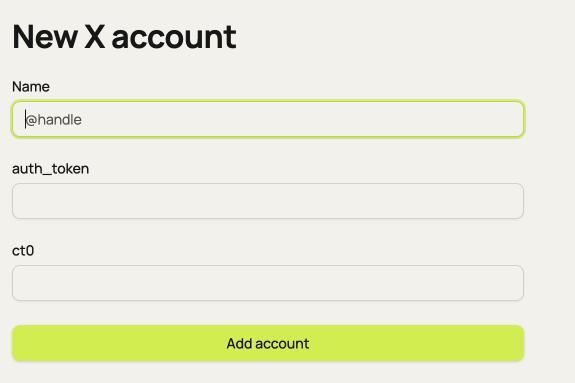
Open the X account connection form
In #gtm, open Connect X. You’ll see the New X account form with the fields Name, auth_token, and ct0.
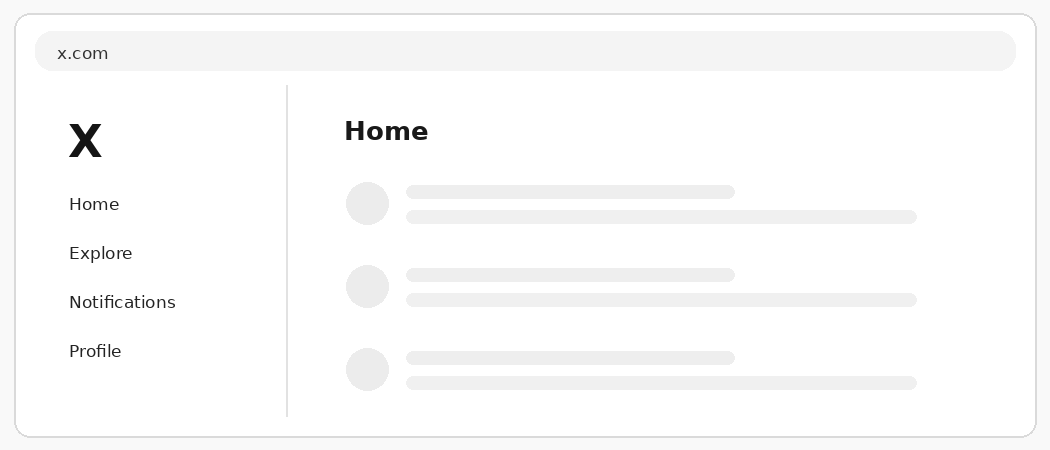
Sign in to the correct X account
Open x.com in a separate tab in your desktop browser. Make sure you’re signed in to the exact account you plan to connect.
Open Cookie-Editor on x.com
While the x.com tab is active, open your cookie viewer extension, such as Cookie-Editor. The extension displays cookies for the current site. If you haven’t installed one, use a trusted browser extension store and review its permissions first.
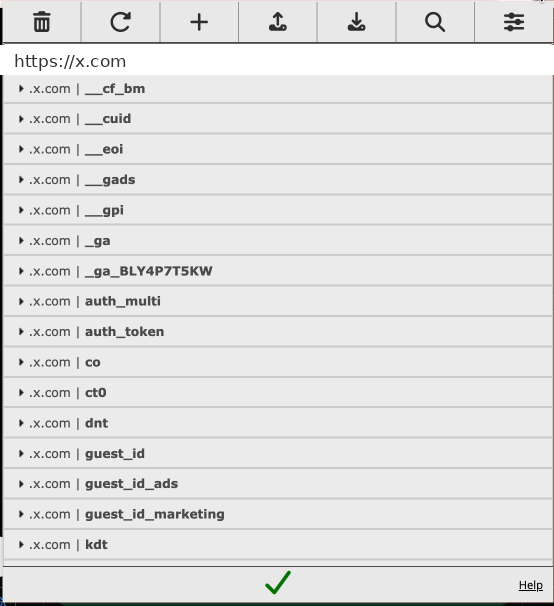
Locate auth_token and ct0
Find auth_token and ct0 in the cookie list. Open each entry and copy its Value. You need both values, each copied separately. Do not export or submit your entire cookie list.
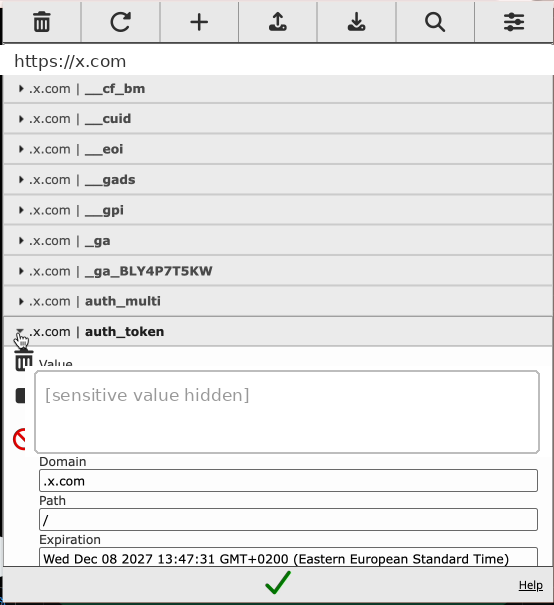
Only two cookie values are needed: auth_token and ct0. The values shown in this guide are never real credentials.
Fill in the form and add your account
Return to the New X account form in #gtm. In Name, enter your X username (for example, @example_account). Paste the matching auth_token and ct0 values into their respective fields, then click Add account.
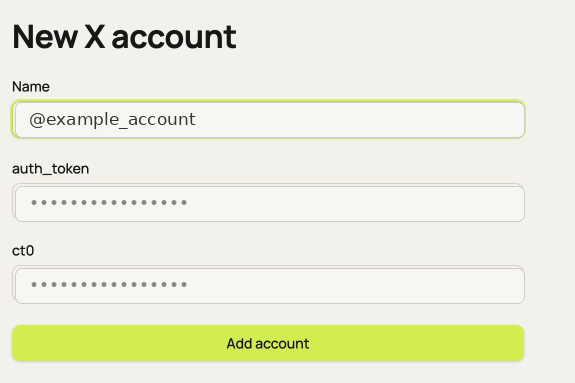
#gtm validates the session by requesting the current X profile using these cookies. If X responds successfully, the connection is considered valid.
Check your connection status
After a successful connection, #gtm opens Settings and displays “X account added”. Your account appears with a green Connected status, a connection date, and Reconnect / Disconnect options.
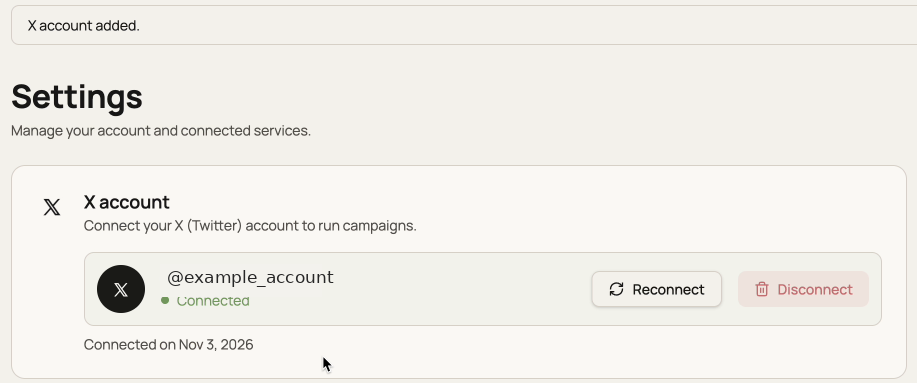
After connecting
What happens if your session changes or something goes wrong?
Reconnect your X account
If a previous attempt failed because of a temporary network error, select Reconnect in Settings. It checks the saved cookies again. If X has invalidated the session, obtain fresh cookies and update the account connection.
Troubleshooting
Cookies weren’t accepted: Check that both values came from the same, currently signed-in X account and were copied without extra spaces.
The account disconnected: X may reject a session. Retry with Reconnect; if needed, refresh your cookies.
Network interruption: Reconnect can retry verification using the same saved cookie values.
Security & privacy
- Cookie values are encrypted at rest when stored by #gtm.
- Sensitive cookie values are filtered from application logs.
- Stored cookies are deleted when you Disconnect an account.
- When a proxy is configured, requests to X are routed through that proxy.
Even with these safeguards, session cookies grant access to an authenticated account. Treat them like a password. This setup is not X OAuth and may involve account or platform-policy risks.
Ready to connect?
Open #gtm and add your X account.